Choose the device symptom in the free connection troubleshooter and note whether a second device on the same network can see the printer.
The question: My laptop has internet, but the office printer says offline. Is it the router or the printer?
Start at the printer itself
Check the display for paper, cover, toner, sleep or hardware errors. If the model supports it, print an internal configuration or test page without using the computer. That separates a print-engine problem from a network or queue problem. Follow the manufacturer's instructions rather than resetting all network settings at the outset.
Note the active interface: Ethernet, ordinary Wi-Fi, a direct printer-to-device mode or USB. A printer may show a wireless icon while using a different connection than expected. Record its current network address from its own status page or the router's authorised device view. Do not assume an old saved address still belongs to it.
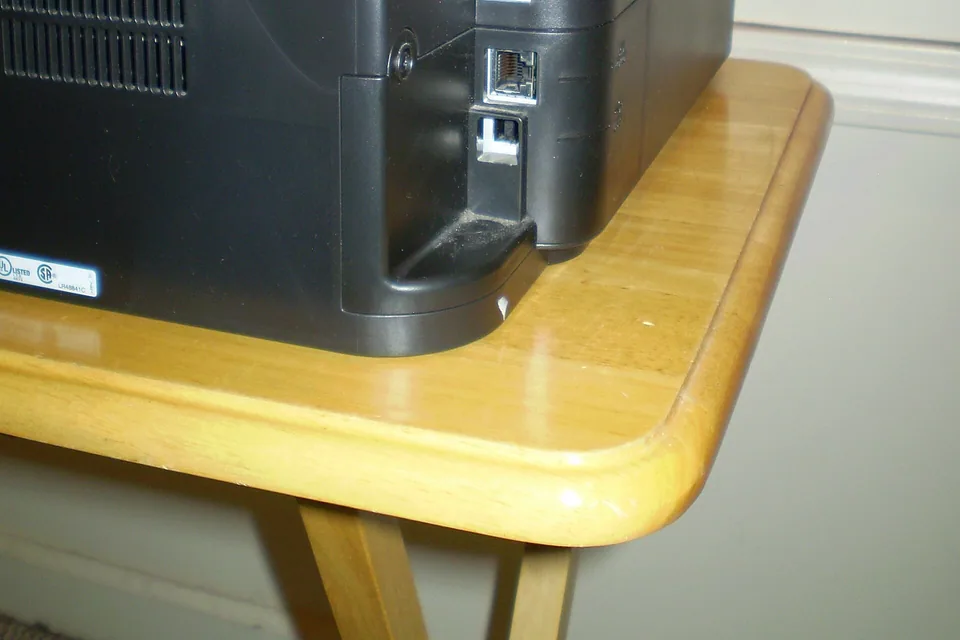

Check the intended local network
Confirm the laptop and printer are on the intended trusted network. A guest Wi-Fi may permit internet access while blocking local devices. Separate VLANs, client isolation or a work VPN can also affect discovery and reachability. Matching a Wi-Fi name alone is not complete proof of the same local path, particularly with guest networks or repeated names.
Where the printer documents a local management page, try its current address from an authorised device. If that page opens but the operating system reports “offline”, the basic path exists and the queue, saved port, driver or discovery process deserves attention. If it does not open, that is a failed application request; it does not by itself prove a broken cable or printer.
Compare a second device and one connection
Try one small test document from another permitted computer or the manufacturer's supported app. If that works, retain the working comparison and focus on the first computer. If every device fails, check the printer's network state and the common path. For an Ethernet printer, a known-good short lead to the intended switch can isolate an installed wall run.
Do not turn off the firewall or guest isolation as a blanket fix. Those boundaries may be intentional. On a business network, ask the administrator for an approved print path. If the printer moved between networks or received a new address, use the model's supported setup process or an approved reservation rather than guessing a static address that may conflict.
Follow the operating-system branch
For Windows, Microsoft's current guidance starts with the printer troubleshooter and checks the printer's network, default selection and queue. Inspect which printer entry you are using; duplicate or stale entries can send a job to the wrong destination. Check whether a queue is paused or has a blocking job. Cancelling shared jobs affects other users, so coordinate it.
Restarting the print service or removing/re-adding the printer belongs after recording the existing setup and confirming the model guidance. On a managed computer, support may control drivers and queues. For an ARM-based Windows device, Microsoft notes that manufacturer installers can have specific installation issues; use the supported Windows or vendor procedure for that model.
Use the result to avoid an unnecessary purchase
| Observation | Next step |
|---|---|
| Internal printer test fails | Resolve the printer's own condition. |
| Second computer prints successfully | Check the first computer's queue, driver and saved destination. |
| Local management works, printing fails | Check the supported printing protocol and queue configuration. |
| Only guest-network devices fail | Use an approved trusted or managed printing path. |
A speed test is not a local printing test, and a new broadband package will not repair a stale queue. Consider cable testing only when substitution points to the physical run. After the change, print the same small document from the original device and check recovery after normal printer sleep. Save the working connection and queue details in the office's own records.
Keep a comparison record
Record the printer's own status page or display first. Compare its network with the computer's network, without publishing the address outside the support record. Use one simple local test document and note whether a second permitted device can print it. This helps distinguish a printer or network issue from one computer's queue or driver. Preserve the exact error before clearing a queue or restarting a service. A browser that reaches the internet does not establish that local devices can discover one another, particularly on a guest network. After a successful fix, repeat printing after the printer wakes from sleep and after the computer reconnects. Keep only the working printer entry once you have verified which installed queue it uses.
Fields in the worksheet: Printer model; Computer and OS; Printer status or error; Printer IP; Computer network; Guest or main network; Second device print; Queue state; Direct USB result if supported; Change made; Result.
Download the blank CSV worksheetQuestions that change the next step
Should I factory-reset the printer?
First save its current network and queue details and perform the comparisons above. A reset can remove a working business configuration and does not establish the original fault.
Does a failed ping prove the printer is offline?
No. Devices can ignore ICMP. Use the supported local interface and actual printing task alongside connection-state evidence.
Continue with the evidence you have
Questions before you change anything
Why is the printer offline when Wi-Fi and internet work?
Printing depends on the printer network path, queue state, device address and discovery method. Working internet access on the laptop does not prove that the laptop can reach the printer.
Could the printer have joined a guest network?
Check SSID, guest isolation, subnet and printer Wi-Fi status. Devices on two isolated networks can both browse the web while remaining unable to communicate locally.
Why does the printer work by address but not by name?
Compare name resolution, multicast discovery, saved queue port and address changes. Preserve the known working path while following the manufacturer’s supported queue setup.
Should I keep reinstalling the printer driver?
First check power state, paper or ink errors, stuck jobs and supported driver version. Reinstalling cannot repair a disconnected printer or an isolation policy.
Would an Ethernet cable solve the printer problem?
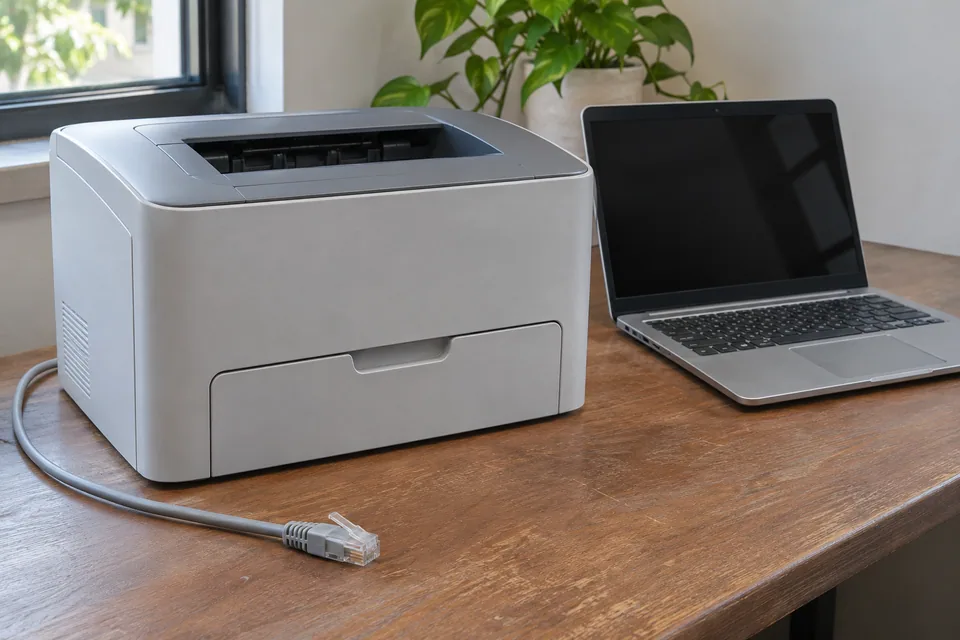
A documented wired connection can be a useful comparison. Confirm printer port support, router LAN access and queue configuration; the cable does not automatically update an old printer address.
Questions and source links reviewed 21 November 2026. The answers apply the limits described in this guide; they are not a test of your equipment.
Sources and scope
These steps combine the references below with a practical comparison sequence. Calculated examples are illustrative; no photograph or example is a claimed bench test. Follow the exact device documentation and site methodology.

Reader questions that informed this update: Reddit: reader discussion. Individual reports help identify questions; answers above use the technical references in this guide.
Details worth checking
What should a Mac user check after a router replacement?
Print the printer’s own network status page and compare its current address with the queue on the Mac. Confirm both are on the permitted local network and that AirPrint is supported for that model. A router replacement can change addressing or discovery even when the printer still shows Wi-Fi bars. Follow Apple and printer-vendor instructions before removing a working queue.
Explain your own result
Replace the brackets with observations you actually made. Leave unknowns as “not checked”. This draft is written for this guide; it is not a quotation or an automatic diagnosis.
Printer [model/interface] can [internal test page/cloud print] but [device/OS] reports [error]. Current address category [known/unknown], trusted/guest network [state], second-device print [result], queue [observation]. Help distinguish print engine, local discovery and one-computer queue issues.
Copying stays on your device. Remove passwords, account numbers and private network details before sharing.
Reader questions that informed this update: Reddit: reader discussion. Individual reports help identify questions; answers above use the technical references in this guide.