
Use the free connection troubleshooter to log whether the same title works on another device and whether other apps play normally on the TV.
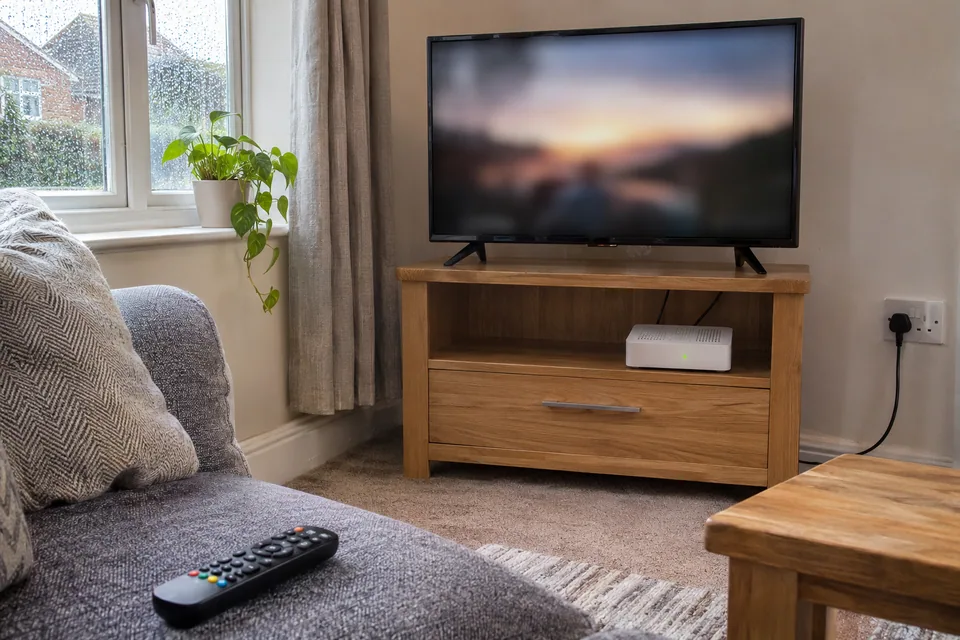
The question: One streaming app keeps buffering on my TV, but other apps play normally. Is this still a Wi-Fi problem, or should I contact the service?
Separate the failing app from the failing title
Write down the television or player model, app version where shown, programme, episode, playback time and exact error. Note whether the issue is a long initial wait, repeated buffering, an app closing or an account message. Those are different failure stages. Keep the network and television settings unchanged while collecting the first comparison.
Try another ordinary title in the same app. If one episode repeatedly stops at the same point while other titles play, record the title and position for the service. If all titles in that app fail, the app or its shared path needs a broader comparison. This pattern does not establish a corrupt programme or a server fault on its own. Live and on-demand playback are also different workloads; label them separately rather than treating one successful film as proof that every live event should work.
Keep one working app as a useful control
On the same TV and connection, play a title in another supported app for a comparable observation period. Record its quality setting where available. One app may select a lower bitrate, use a different codec or reach a different delivery service. Reliable playback is therefore evidence that this particular task works; it is not a certification of the TV radio, the entire internet connection or the failing service.
Use the affected service's own connection check on the television if it provides one. Record the test method beside the result. Netflix's guidance, for example, includes an in-app network check on supported television interfaces. A phone speed result uses a different device and can reach a different destination. Keep that reading as supplementary context, not a substitute for the TV's own failing task. Compare with the service's current recommendations without inventing a universal speed threshold.
Compare the original service on a second supported device
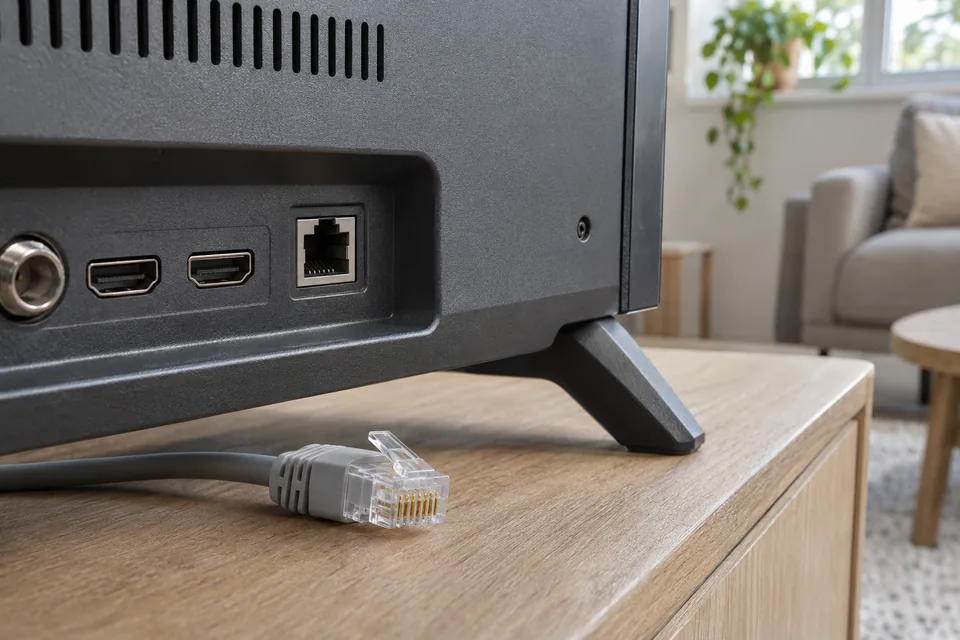
Try the original title in the same service on another supported device using the intended home network. Keep within the account's permitted simultaneous use and device rules. If the service works there while the TV app fails, record the TV-specific difference: supported model, app update state, error and whether every title is affected. A second-device pass narrows the investigation but does not identify the defective component.
If the original service fails on both devices while other services work, consult its official help and service-status route. Save the time and exact message. Shared failure may involve account state, the service, name resolution or a destination-specific network path; it does not automatically mean the broadband is too slow. Do not borrow another person's credentials, change the account region or install an unofficial app to create a comparison. Those changes would introduce a different problem.
Use supported app recovery, then test the same task
Follow the service's current instructions for the exact television or player. A normal app exit, documented restart or supported update may be appropriate. Record each action and repeat the same title before doing the next one. Netflix presents device-specific buffering steps because menus and available recovery actions differ. Avoid generalising a button sequence from a different television brand or streaming box.
Before an action that clears app data or signs out, confirm you can restore the permitted account access and keep any relevant settings privately. A full television or router factory reset changes many variables and should not be the first response to a single-app symptom. If the supported restart helps once, keep the result and observe normal use; it does not prove the original cause. Retest after an ordinary sleep and wake cycle so a temporary recovery is not mistaken for a lasting repair.
Use a connection change only to answer the remaining question
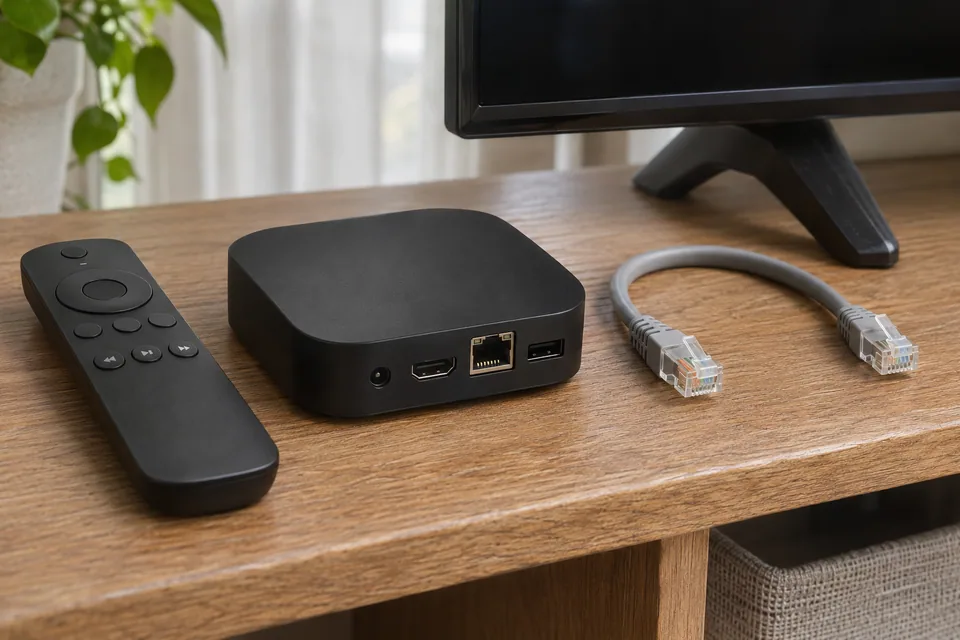
If the service still fails, a supported known-good Ethernet connection to the TV can compare its usual wireless path. Route a temporary lead safely and repeat the original app and title. If only that app improves, keep the result without declaring Wi-Fi universally faulty: app demand and destination conditions can differ. If every TV app now fails on wireless and works on the wired comparison, continue with the broader TV-connection guide.
| Observed pattern | Next useful step |
|---|---|
| One title fails at a repeatable point | Give the service the title, position, device and time. |
| Only the TV app fails; a supported second device works | Check the TV app's supported recovery and compatibility. |
| The service fails on several devices; other services work | Check service/account status and the shared destination path. |
| Several TV apps fail only on its usual wireless path | Compare TV placement, the connected node and backhaul. |
A replacement router or faster package is premature while only one app is implicated. Buy equipment after a comparison identifies an unresolved capability or coverage limit. Accept a repair when the original title and ordinary playback remain reliable through the previous failure condition, with the working control app still functioning.
Keep a comparison record
Record app and title separately from connection speed. Keep the original failing task and one working control so a later recovery can be assessed without changing the workload.
Worksheet fields: TV or player model; App and supported version; Title and playback position; Exact failure stage; Time and observation duration; Second title result; Control app result; Second-device result; Supported recovery action; Original task retest.
Accept the result when: The original app and title play reliably through the former failure condition, and the control app still works after normal sleep and recovery.
Download the blank CSV worksheetQuestions that change the next step
Does another app playing in 4K prove the internet is fine?
It proves that supported task worked under those conditions. Services can use different delivery paths, codecs and adaptation, so it cannot rule out a destination-specific problem.
Should I reinstall the app immediately?
Use the service and device instructions, record the original error and confirm account recovery first. Compare the same title after each supported action rather than clearing every setting at once.
Continue with the evidence you have
- When the TV connection affects several apps
- Only one website fails: a different task comparison
- Check mesh Ethernet backhaul separately
Compare cable tools only if an installed-link question remains →
Questions before you change anything
Why does only one TV streaming app keep buffering?
Compare another title, another service, same app on another device and service status. A working alternative stream narrows the issue, but different codecs, servers and account states still need checking.
Can one programme fail while the broadband is healthy?
Yes. Check content availability, regional rights, playback error and account entitlement. Keep the exact title and episode for the service’s support team.
Should I clear the streaming app or reset the whole TV?
Follow the maker’s app-restart procedure, update guidance, cache controls and sign-in requirements. Try a narrow reversible action first; a factory reset can remove unrelated settings without answering the cause.
How do I rule out the TV’s network path?
Compare a safe Ethernet test, the same Wi-Fi location, household load and playback quality setting. Keep the app and content fixed so the connection change is meaningful.
Would faster broadband solve this particular app problem?
Compare required bitrate, sustained delivery, other working streams and provider-to-service path. A faster plan is justified by a capacity limit, not simply by one app showing a spinner.
Questions and source links reviewed 21 November 2026. The answers apply the limits described in this guide; they are not a test of your equipment.
Sources and scope
The references support the measurement principles and device-specific checks. This guide organises them into a practical comparison sequence. Calculations are examples; the AI-generated scene illustrations are not test captures. Use the exact device documentation and the site methodology.
Reader questions that informed this update: Reddit: reader discussion. Individual reports help identify questions; answers above use the technical references in this guide.
Details worth checking
Should I clear the app cache when only one streaming service fails?
First capture the error code, app version, account state and service status. Follow that platform’s instructions for cache or storage management: clearing app data can remove downloads and sign-in state. If another app works, keep its result as a control; reinstalling everything at once discards useful evidence about the affected app.
Explain your own result
Replace the brackets with observations you actually made. Leave unknowns as “not checked”. This draft is written for this guide; it is not a quotation or an automatic diagnosis.
Copying stays on your device. Remove passwords, account numbers and private network details before sharing.
Reader questions that informed this update: Reddit: reader discussion. Individual reports help identify questions; answers above use the technical references in this guide.