1. Separate connector shape from capability
USB-A and USB-C describe connectors. They do not tell you whether the attached Ethernet interface supports 100 Mbps, gigabit or a higher rate, nor do they establish the host port’s data capability. A short “USB Ethernet” product name is not enough to identify the limiting component.
Read the full model and hardware revision on the adapter or dock, then check the vendor’s specifications. TP-Link’s UE200 is one concrete example of a product with USB 2.0 and a 10/100 Mbps Ethernet port. It is not a faulty gigabit adapter when it stays below gigabit; gigabit is outside its stated Ethernet capability.
For a dock, check the laptop’s supported connection mode, the dock’s Ethernet controller and any detachable host cable. Some ports on a dock serve different purposes. Use the documented upstream connection and supplied or explicitly compatible cable rather than assuming every similar-looking socket is equivalent.

2. Check the negotiated Ethernet rate first
Find the active Ethernet connection’s link speed in the operating system or adapter utility. In current Windows versions, Ethernet properties commonly show a receive/transmit link speed; labels vary. On other systems, use their Ethernet hardware or system-information view. Record the value rather than inferring it from an internet result.
If a gigabit-capable adapter links at 100 Mbps, compare a known-good short patch lead and another approved gigabit LAN port. A wall run or switch elsewhere may be the lower-rate component. Leave auto-negotiation at its documented default unless the vendor has identified a specific reason to change it.
If the link says gigabit, that describes the Ethernet segment between the adapter and its peer. It does not guarantee gigabit application throughput through the USB host, the internet service or a particular server. Keep the link-rate check separate from the speed-test result.
3. Compare direct USB and dock connections
- Use one laptop, one known-good patch lead and the same router LAN port. Pause optional transfers and note the active VPN state.
- If the adapter is detachable, connect it directly to a host port documented to support its data requirements. Confirm that this Ethernet connection is the path in use.
- Run the same speed test sequentially, then reconnect through the dock and repeat. For a dock with built-in Ethernet, compare a known-good separate adapter if you already have one.
- If practical, repeat on another supported host port. Record the actual port and any intermediate hub, not just “USB-C”.
A USB 2.0 host path has a 480 Mbit/s signalling ceiling shared with its overhead and traffic, so it cannot deliver a full gigabit of useful Ethernet data. That does not mean every USB adapter is a 100 Mbps adapter: Ethernet capability and USB host capability are separate checks. Use the actual product and laptop documentation.
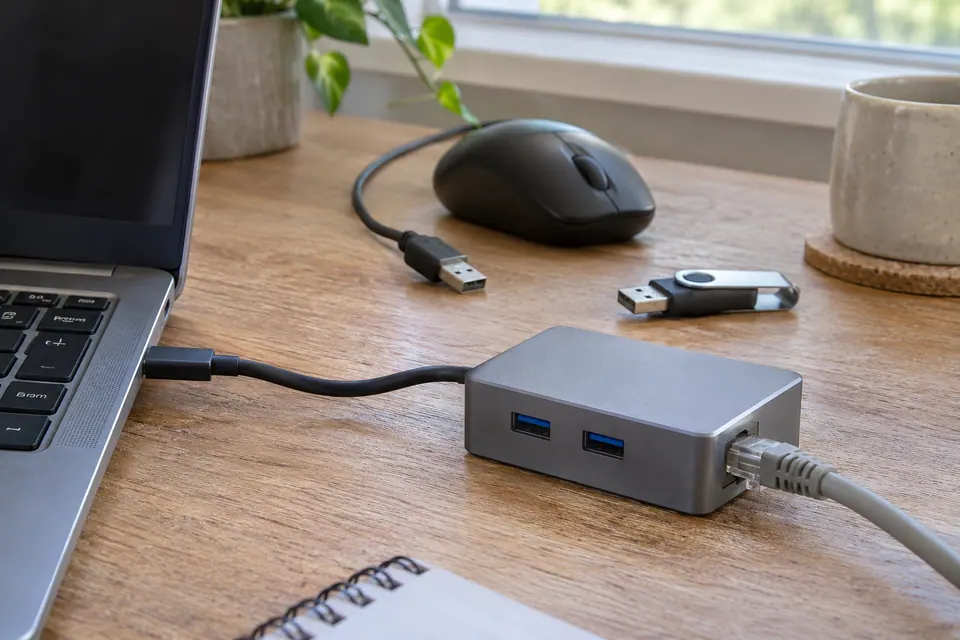
4. Restore the normal dock workload one item at a time
If the direct path works, reconnect the dock’s ordinary devices gradually. An external drive, display arrangement and other peripherals can affect the resources available in some dock designs. The effect depends on the dock, connection mode and laptop; do not assume all display traffic shares bandwidth in the same way.
Repeat a representative file transfer or work task with the normal dock setup. A problem that appears only after sleep, after attaching a device or during sustained load is useful evidence for the manufacturer. Note disconnects separately from low throughput, and keep the power supply and host cable specified for the dock.
Install drivers or firmware only from the exact manufacturer support page for your hardware and operating system, when an update is relevant. Avoid generic driver-download sites. BIOS changes, jumbo frames and a long list of advanced adapter tweaks are not a universal USB speed fix; they can make a comparison harder to interpret.
5. Replace the part the evidence identifies
| Result | Reasonable next step |
|---|---|
| The adapter is specified as 10/100 | Choose a higher-rated compatible adapter only if your task needs it. |
| A cable or port swap restores the expected link rate | Repair or replace that cable/port path. |
| Direct host connection works; dock path does not | Check dock mode, host cable, power, firmware and vendor support. |
| Both paths are slow; another capable device works | Investigate laptop software, workload and adapter support. |
After a change, retest at your usual desk with the normal peripherals attached. Save a stable result and the exact configuration. A replacement that produces a higher one-off speed but still disconnects during a meeting has not solved the original problem.
Keep the result, not just the impression
Common questions
Is USB-C always faster than USB-A Ethernet?
No. Connector shape alone does not establish USB data speed or the Ethernet controller’s rating. Check the host port, cable, dock and adapter specifications.
Should I enable jumbo frames to improve internet speed?
Not as a general first step. Jumbo frames require a suitable end-to-end local setup and do not remove a slow internet service or a 100 Mbps physical link. Keep ordinary settings while isolating the path.
Sources and scope
- TP-Link UE200: an example of a 10/100 Mbps USB adapter
- Cloudflare: how browser speed and latency are measured
- Fluke Networks: verification, qualification and certification
The UE200 citation demonstrates one real adapter specification; it is not a recommendation or a claim that all USB 2.0 adapters have 100 Mbps Ethernet.
Related checks
Browse all connection guidesQuestions before you change anything
Why is my USB Ethernet dock slower than the laptop Wi-Fi?
Check USB bus speed, Ethernet port rate, dock power and shared peripherals. A gigabit-labelled adapter can still sit behind a slower USB connection or a constrained dock.
Could a USB-C cable limit the Ethernet adaptor?
Yes. USB-C connector shape does not establish data capability. Check cable specification and host-port support; a charging lead may not support the dock’s intended data mode.
Why does the dock slow down when I connect a display?
The arrangement may share USB bandwidth, display resources, power delivery or thermal capacity. Compare with the display disconnected and consult the host and dock compatibility guidance.
How do I separate a bad Ethernet lead from a dock problem?
Use the same network port, known-good lead, test endpoint and transfer workload. Compare a direct built-in port or another compatible adaptor before replacing the fixed cable.
Should I buy a 2.5 Gbps USB adapter?
Check the complete multi-gig path, driver support, USB throughput and actual task requirement. An upgraded adapter cannot exceed a 1 Gbps switch port or accelerate a transfer limited by storage.
Questions and source links reviewed 21 November 2026. The answers apply the limits described in this guide; they are not a test of your equipment.

Reader questions that informed this update: Reddit: reader discussion. Individual reports help identify questions; answers above use the technical references in this guide.
Explain your own result
Replace the brackets with observations you actually made. Leave unknowns as “not checked”. This draft is written for this guide; it is not a quotation or an automatic diagnosis.
Adapter/dock [model/revision], Ethernet rating [rate], host USB mode [mode], negotiated link [rate]. Direct connection [result], dock [result], normal peripherals [result], sleep/wake [result]. Help separate cable negotiation, host bandwidth and dock support before replacing equipment.
Copying stays on your device. Remove passwords, account numbers and private network details before sharing.
Reader questions that informed this update: Reddit: reader discussion. Individual reports help identify questions; answers above use the technical references in this guide.