
Use the free connection troubleshooter to record whether the phone stays online in the setup spot and whether only the smart plug fails to join.
The question: My phone has fast Wi-Fi, but a new smart plug cannot connect. Do I need another router?
Identify the setup stage that fails
Write down the device model, app, indicator pattern and exact message. Is the app unable to discover it, unable to send network credentials, or unable to bring it online after joining? These stages use different paths. Some products use Bluetooth during discovery, some create a temporary Wi-Fi network, and others use a different radio system entirely.
Read the model's supported band and security requirements. A 2.4 GHz-only device cannot use a 5 or 6 GHz-only network. That does not mean a dual-band router is unsuitable; many routers provide both. Check the current mode and vendor setup guidance rather than relying on the phone's excellent speed-test result.

Try setup in a known-good location
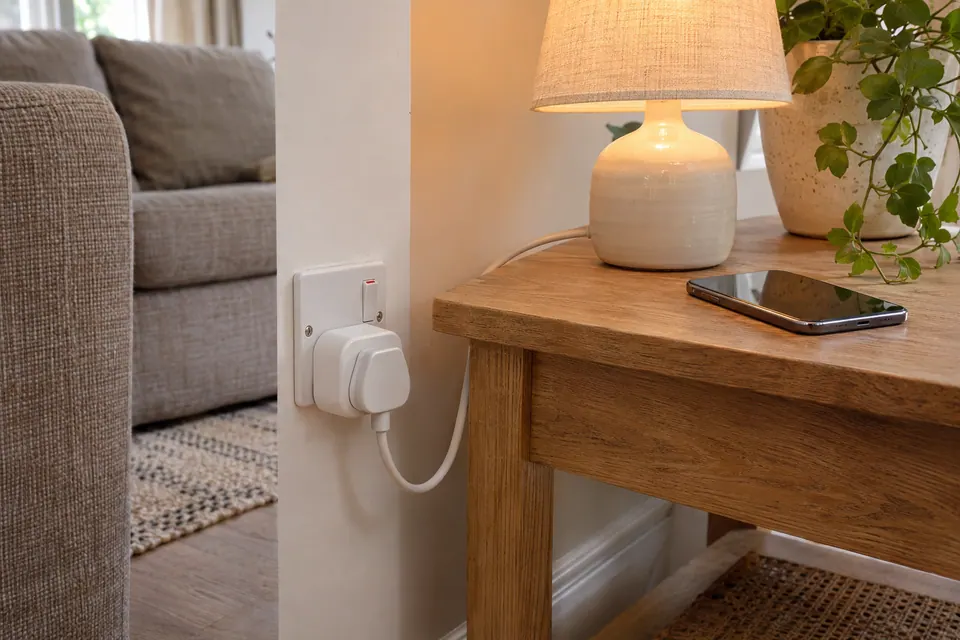
Keep the device near the router for the initial setup, with ordinary ventilation and a safe intended power connection. Follow the documented pairing sequence; a factory reset is not always the first step and may remove existing automations. Use the official app and ensure its required local-network or discovery permissions are understood.
Confirm you are using the intended network and the correct credentials. A guest or captive-portal network may not support the product's setup or communication model. If an app temporarily joins the product's own network, a “no internet” warning can describe that temporary stage rather than your broadband. Follow the vendor's sequence and rejoin the normal network when instructed.
Keep compatibility separate from coverage
If the product does not join even beside the router, investigate supported security, setup mode, firmware and credentials before buying a range extender. Some older devices need specific compatibility settings. Use the model's recommended approach or a properly isolated supported IoT network; do not disable security or convert the main network into an open hotspot.
If setup succeeds near the router, move the device to its intended location and repeat the actual control or sensor-report task. A device with a small antenna can behave differently from the phone beside it. A metal enclosure, appliance or dense wall may affect it. Compare the device's own reported connection state where available; the browser cannot infer its RSSI from your phone's test.

Use the failure stage to select the next test
| Failure stage | Useful comparison |
|---|---|
| App cannot discover device | Check pairing state, required discovery method and permissions. |
| Credentials rejected near router | Check intended network, band and supported security. |
| Joins near router, drops in final room | Compare the final location and intermediate coverage. |
| Network joined, cloud control fails | Check vendor status, account and permitted outbound path. |
Temporary band-name separation or an IoT onboarding mode may help on particular routers, but it is not a universal requirement. Record original settings, follow the router and product guidance, and restore temporary changes when appropriate. Do not expose the device with port forwarding merely to make discovery or cloud control work.
Verify the whole use cycle
After a change, test local control if supported, cloud control if required, and normal recovery after a brief permitted power interruption. Check the device returns to the intended network and retains its automation. A setup screen saying “success” is only one step; successful operation in the actual room is the result you need.
Buy an extra access point or mesh node when the room comparison shows a genuine path gap and the proposed node has a good backhaul. A cable tester is relevant only for a wired part of that path. If the device is incompatible with the network's required security or radio system, replacement with a compatible device may be more effective than adding coverage equipment.
Keep a comparison record
Copy the exact device's supported band and security requirements from its instructions. Record whether it never joins the router, joins but cannot finish setup, or joins and later becomes unreachable. These states need different comparisons. Keep the phone and device near the intended router for one controlled onboarding attempt, then test in the final location only after setup succeeds. Use the router's normal client list to check whether an address was assigned. Do not turn off encryption, open remote administration or disable network isolation globally to make a setup app happy. If the manufacturer requires a temporary setting change, understand its scope and restore the normal configuration after the documented process. Record both local control and any cloud-dependent control separately.
Fields in the worksheet: Device model and instructions; Supported Wi-Fi band; Required security mode; Phone network; Pairing indication; Permission required by app; Near-router attempt; Address assigned; Cloud or local control; Final location result; Next action.
Download the blank CSV worksheetQuestions that change the next step
Must the phone and device always use the same Wi-Fi band?
Requirements vary by setup method. Follow the exact device instructions. The relevant band support belongs to the device and network, not simply the phone.
Will changing the DNS server make a 2.4 GHz device join?
DNS does not fix an unsupported band, failed pairing state or rejected Wi-Fi credentials. Identify the failed stage first.
Continue with the evidence you have
Questions before you change anything
Why will my smart plug not join Wi-Fi?
Check the exact 2.4 GHz requirement, security mode, setup sequence and app permissions. A visible network and strong signal do not establish compatibility with an older IoT radio.
Do I have to turn off 5 GHz to set up a smart device?
Follow the vendor’s onboarding guidance. A temporary band-specific network can help some devices, but check router support and phone connection. Restore the intended settings after the comparison rather than weakening the whole network.
Could guest isolation stop setup even when internet works?
Yes. Client isolation, local discovery, different subnets and phone-to-device access can affect onboarding. Use a supported network design that preserves the intended separation of untrusted devices.
Why does the device connect to a hotspot but not the home router?
Compare SSID format, WPA compatibility, DHCP availability and radio settings. The hotspot changes several conditions, so success is a clue rather than proof that the router hardware is defective.
Should I buy an extender for a smart-device setup failure?
First test near-router setup, supported firmware, factory-reset instructions and manufacturer account status. An extender cannot repair an unsupported security mode or a service-side activation problem.
Questions and source links reviewed 21 November 2026. The answers apply the limits described in this guide; they are not a test of your equipment.
Sources and scope
These steps combine the references below with a practical comparison sequence. Calculated examples are illustrative; no photograph or example is a claimed bench test. Follow the exact device documentation and site methodology.
Reader questions that informed this update: Reddit: reader discussion. Individual reports help identify questions; answers above use the technical references in this guide.
Details worth checking
Should I turn off WPA3 or 5 GHz to pair a 2.4 GHz plug?
Use the device’s documented band and security requirements. Some devices need a supported WPA2 arrangement and cannot join a WPA3-only network; others work with a compatible transition mode. A 2.4 GHz-only device does not gain 5 GHz support through an app setting. Ask the network owner for an approved compatible network rather than weakening security for every client.
Explain your own result
Replace the brackets with observations you actually made. Leave unknowns as “not checked”. This draft is written for this guide; it is not a quotation or an automatic diagnosis.
Copying stays on your device. Remove passwords, account numbers and private network details before sharing.
Reader questions that informed this update: Reddit: reader discussion. Individual reports help identify questions; answers above use the technical references in this guide.