
Use the free connection troubleshooter to record whether Wi-Fi calling drops in one room, during an upload, or on a second phone as well.
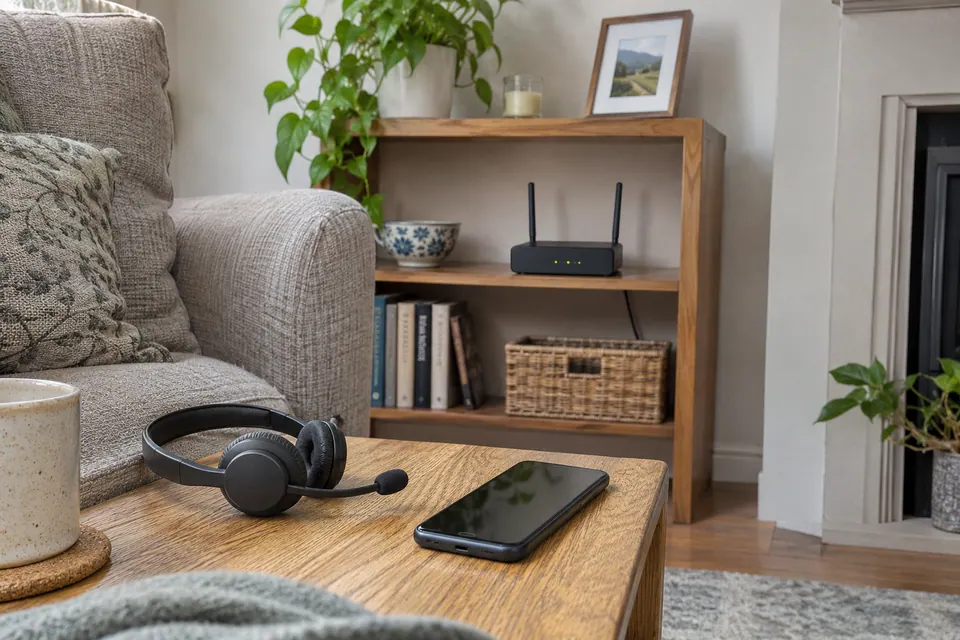
The question: Calls break up indoors even though my broadband speed looks good. Will a faster package fix Wi-Fi Calling?
Identify which calling service is failing
A normal phone call using the operator’s Wi-Fi Calling service is different from a WhatsApp, FaceTime, Teams or Zoom call. They can use different applications and service paths. Record which service fails, whether calls drop completely or only the audio breaks up, and whether the symptom affects outgoing calls, incoming calls or both.
Confirm support for the exact phone, active SIM or line and plan with the mobile operator. Apple’s instructions explain how to enable Wi-Fi Calling and check its status on a supported iPhone, including selecting the correct line on a multi-SIM device. A Wi-Fi symbol by itself does not establish that the carrier calling service has registered. Menu names and indicators vary between phone families and software versions.
Prove a stationary call before walking around
With the other person’s agreement, make an ordinary short test call from a quiet position near the router. Record whether the phone shows the carrier’s Wi-Fi Calling state and whether audio is clear in both directions. Keep the same phone, calling service and correspondent for the next comparison. Avoid repeated emergency-service calls; emergency numbers must not be used as test destinations.
Repeat from the room where the problem usually occurs. If the near-router call works and the stationary distant-room call fails, investigate that room’s wireless path. If both positions fail, coverage alone is a weaker explanation. Try a permitted different Wi-Fi network using the operator’s instructions. Apple notes that not every Wi-Fi network supports the feature. A failure on one network is useful evidence without proving which router setting is responsible.

Separate room coverage, roaming and household traffic
Only after both stationary positions work should you compare the route between them. A call that fails when crossing a doorway or moving between mesh nodes raises a different question from a call that fails while sitting still. Note the point on the route and the connected access point if the system makes that visible. Do not assume that a seamless network name guarantees seamless handover for every handset.
Repeat one stationary call while optional uploads are paused, then during normal household activity. If several real-time tasks degrade together when an upload starts, investigate that shared pattern. A wired laptop beside the router can provide another observation of the wider connection, but it does not measure the phone’s Wi-Fi radio or the carrier’s calling path. An HTTP latency reading is not the call’s end-to-end voice delay.
Collect evidence that selects the support route
| Pattern | Useful focus |
|---|---|
| Carrier calls fail; ordinary app calls work | Operator support, registration and that service’s path. |
| Several calling apps fail only in one room | The room’s wireless connection and upstream access point. |
| Calls fail when moving between rooms | The repeatable roaming route and device behaviour. |
| Calls and wired tasks degrade during uploads | The shared connection under household load. |
These observations narrow the next check; they do not prove a single component is defective. Keep the phone model, software version, operator, approximate time, location and whether the remote party heard a problem. Avoid posting phone numbers or call records publicly. Give the operator or home-network helper the minimum useful record through an approved channel.
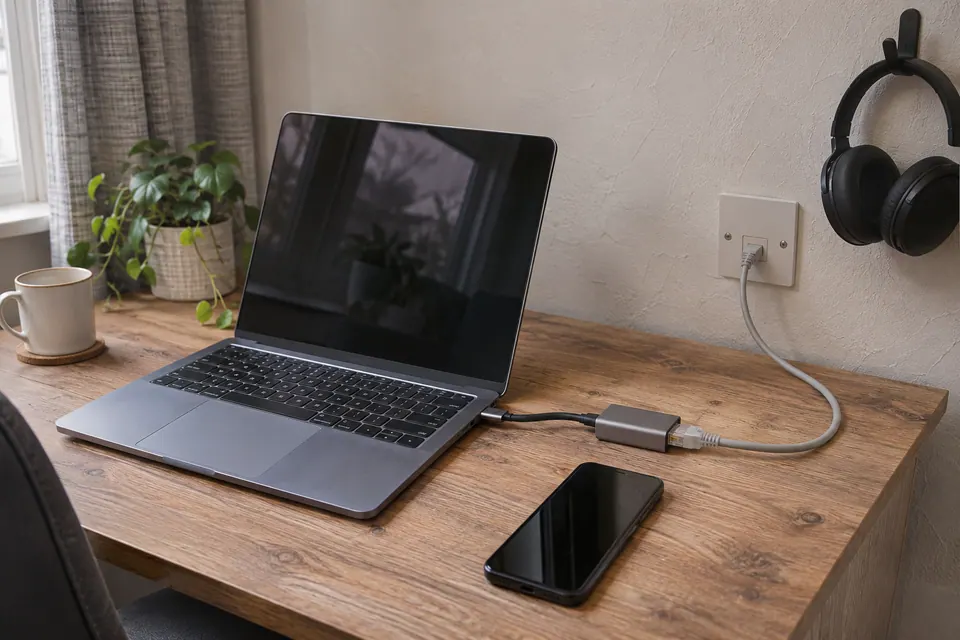
Fix the demonstrated gap and repeat the call
Follow the phone maker’s supported updates and the operator’s registration advice. A network-settings reset can remove saved Wi-Fi, VPN and related configuration, so understand its consequences and retain the information required to reconnect. Randomly opening inbound ports or disabling router protection is not a general Wi-Fi Calling remedy. On a managed or shared network, ask its administrator.
If the fault follows one room, trial a better router or access-point position with a healthy upstream link before purchasing a faster service. If the symptom follows the carrier service across otherwise working networks, involve the operator. Keep an alternative means of calling for important communications and follow the operator’s emergency-calling and address requirements. Declare success when the original type of call remains usable in its normal location and conditions, rather than when a speed-test number increases.
Keep a comparison record
Keep the calling service and stationary position explicit. Record audio in both directions and whether movement or household traffic changed the result.
Fields: Time and timezone; Phone and software; Operator and active line; Calling service and status; Stationary room; Movement route if tested; Household traffic; Audio and disconnect result.
Download the blank CSV worksheetQuestions that change the next step
Does a fast download prove Wi-Fi Calling should work?
No. Registration, network support, delay variation, the local wireless path and the carrier service matter as well as available throughput.
Should I force airplane mode for every comparison?
Use the operator’s documented method for your device and circumstances. Do not remove your available calling fallback as a routine troubleshooting step.
Continue with the evidence you have
Start with the free connection checks →
Use the devices you already have for the first comparison. If a physical cable question remains, the equipment selector explains the capability to check before a purchase.
Questions before you change anything
Why do Wi-Fi calls drop when other internet use looks fine?
Check Wi-Fi Calling registration, carrier support, handset settings and interactive connection quality. A fast download does not establish reliable delivery for a voice session.
How do I know whether the phone is really using Wi-Fi Calling?
Follow the carrier’s status-indicator guidance. Note mobile signal, Wi-Fi association and call state. Do not assume that being connected to home Wi-Fi means the call is using it.
Why do calls drop when I move upstairs?
Compare room coverage, access-point roaming, handover behaviour and call timing. Keep the same handset and contact; stationary and moving calls test different conditions.
Could uploads or video meetings disrupt Wi-Fi calls?
Compare background traffic, loaded latency, packet loss and wired household demand. Pause one permitted upload and repeat before replacing the router or changing carrier.
Should I change router firewall settings for Wi-Fi Calling?
Use only the carrier and router maker’s documented requirements. Check firmware version, VPN interaction and provider support; avoid broad port exposure or disabling security based on a generic forum fix.
Questions and source links reviewed 21 November 2026. The answers apply the limits described in this guide; they are not a test of your equipment.
Sources and scope
These original steps combine the references below with a practical comparison sequence. Follow the current instructions for the exact device and service. Images are labelled AI illustrations; they are not measurements or product tests. Read our evidence policy.
Reader questions that informed this update: Reddit: reader discussion. Individual reports help identify questions; answers above use the technical references in this guide.
Details worth checking
Why does Wi-Fi Calling drop near the front door?
Record whether the phone changes between Wi-Fi Calling and the mobile signal at that point. Keep the call type and handset state visible in your notes. The carrier or broadband provider can investigate different parts of that route; neither can infer a handover failure from a speed-test number alone. Follow the carrier’s guidance and keep an alternative way to make an important call.
Explain your own result
Replace the brackets with observations you actually made. Leave unknowns as “not checked”. This draft is written for this guide; it is not a quotation or an automatic diagnosis.
Copying stays on your device. Remove passwords, account numbers and private network details before sharing.
Reader questions that informed this update: Reddit: reader discussion. Individual reports help identify questions; answers above use the technical references in this guide.