
1. Describe your busiest ordinary hour
Do you need two video calls to work while a child watches TV, or do you mostly edit documents and occasionally download a large file? Those are different requirements. Count active tasks, rather than every device that happens to be connected. An idle thermostat is not equivalent to a laptop sending a camera stream.
Write down a typical busy hour and the task that must remain reliable. Include uploading: sending a presentation, synchronising a photo library and backing up a computer can compete with a call even when the advertised download rate looks generous. A slow overnight backup may be acceptable; an interrupted customer call may not be.
| Task | Direction to check | Question to answer |
|---|---|---|
| Video meeting | Upload and download | How many endpoints join at once, and is screen sharing used? |
| TV or video stream | Mainly download | What quality is selected, and how many streams overlap? |
| Cloud backup or file delivery | Often upload | Must it finish during the working day? |
| Game or software download | Download | Can it be scheduled or rate-limited? |

2. Use app requirements as inputs, not a universal promise
Look up the current guidance for the applications you actually use. Microsoft lists recommended Teams meeting-video bandwidth of 2,500 Kbps up and 4,000 Kbps down per endpoint. That is 2.5 Mbps up and 4 Mbps down. Quality adapts to conditions; screen sharing, meeting layout and other applications also matter.
Hypothetical example: two endpoints each using that meeting-video recommendation produce a starting allowance of 5 Mbps upload and 8 Mbps download for those video streams. This is arithmetic for one scenario, not a recommendation to buy a 5/8 Mbps household package. Add other simultaneous traffic and room for variation. Do not double-count combined app modes without checking the vendor’s guidance.
If a work laptop joins a meeting and the same person also joins on a phone, that can mean two endpoints. Conversely, four people sitting in front of one meeting-room camera are not automatically four separate video uploads. This is why a task list beats a fixed “Mbps per person” rule.
3. Measure where you work, then compare the path
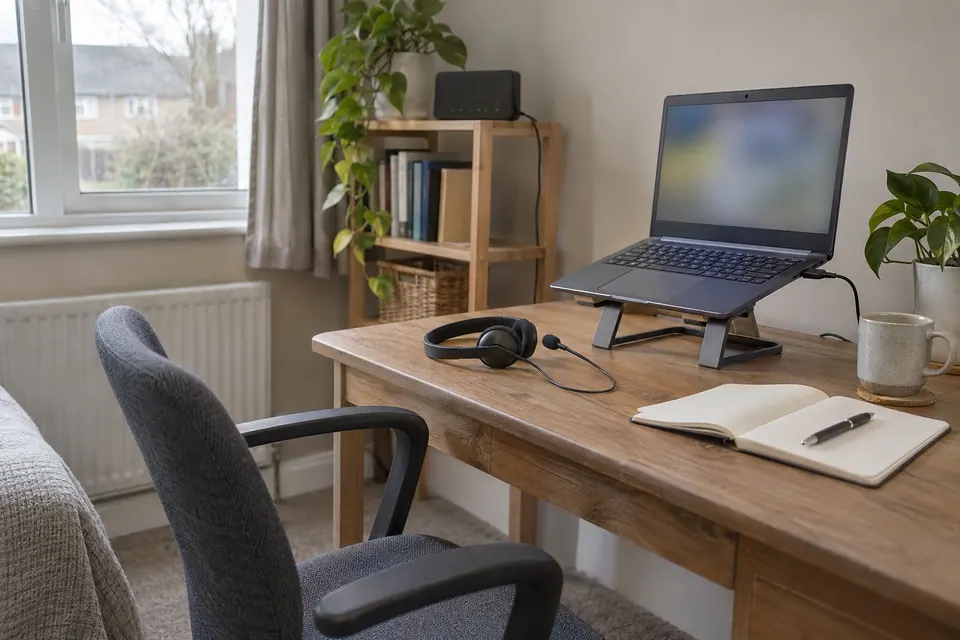
- Pause optional downloads and cloud backups. Run the speed test at your desk and save download, upload and delay with the time.
- Repeat on the same device beside the main router. If practical, compare with a known-good Ethernet connection to a LAN port.
- Repeat at the hour when calls normally struggle. Keep the device, test service and connection type consistent.
- Try the real work task. Use the meeting app’s own call-health information where available; a browser test is a different destination and workload.
A strong result beside the router and a poor result upstairs points towards the home connection between those places. A low wired result at the router is a reason to investigate broadband delivery, local traffic and the test path. Neither observation by itself proves who is at fault. Record the contrast before purchasing equipment.
4. Match the purchase to the limiting factor
| Repeatable observation | Useful next move |
|---|---|
| Desk Wi-Fi struggles; wired comparison works | Improve placement, coverage or a wired connection to the desk. |
| Calls fail only while backups upload | Schedule or limit backups; compare latency under load before upgrading. |
| Wired capacity is reached during necessary simultaneous tasks | Compare plans, especially their upload rates and actual service terms. |
| Only a work VPN or one app is affected | Give IT the app, time and comparison results; preserve required VPN settings. |
Higher download capacity can shorten large transfers and allow more overlapping work. It does not guarantee a lower game ping, remove a remote-service outage or make every room’s Wi-Fi equally fast. Check the provider’s package details and minimum-speed terms for your address; this guide does not infer a UK service guarantee from US broadband recommendations.
5. Keep a short needs record before choosing a plan
Use the downloadable worksheet to separate essential tasks from flexible transfers. Put the app requirement next to the measured result and note whether the problem persists on Ethernet. That gives you a question a provider or installer can answer: “Can this connection sustain these tasks at this time?”
You have enough information to make a decision when the same task works consistently after the proposed change. If you relocate a node, reconnect a dock or change a traffic schedule, repeat the original busy-hour task rather than judging success from one unusually high speed-test result. Keep the before-and-after records for the next renewal.
Keep the result, not just the impression
Common questions
Do I need gigabit broadband for home working?
Not automatically. Start with simultaneous application needs and upload capacity. Gigabit can help large transfers, but a reliable lower-rate connection may serve your tasks; test the actual desk connection before buying.
Why does my call freeze when my download speed is high?
Upload saturation, variable delay, Wi-Fi interruptions, the app path or a work VPN may matter. Compare a quiet connection with the problem period and read the existing call-freezing guide.
Sources and scope
- Microsoft: prepare your network for Teams
- Cloudflare: how browser speed and latency are measured
- HighSpeedInternet: activity and household needs tool
The household-task approach is useful; US plan recommendations and historical US statistics from the comparison site are not used here.
Related checks
- Good speed but Teams or Zoom freezes
- Internet slows during uploads
- Router test faster than your laptop
Questions before you change anything
How much internet speed do I need for working from home?
Start with simultaneous meetings, file transfers, remote desktop and household use. Add the applications’ current requirements rather than applying one universal Mbps figure to every job.
Why do work calls fail on a fast broadband plan?
Check upload capacity, loaded latency, packet loss and Wi-Fi stability. The largest download number does not describe the reliability of an interactive work session.
Should my office desk use Ethernet?
Compare a safe temporary wired connection with the desk’s wireless path. Consider dock capability and cable routing. Keep the same call or transfer so the result can inform a permanent installation decision.
How can I plan a backup connection for important meetings?
Test mobile coverage, hotspot allowance, USB tethering and work VPN access before an outage. Confirm that the laptop can use the approved work tools on that backup without exposing private credentials.
What should I change before paying for a faster plan?
Try upload scheduling, router placement, queue management and device maintenance where supported. Retest the actual work task; buy more capacity only when the existing path is demonstrably the limiting factor.
Questions and source links reviewed 21 November 2026. The answers apply the limits described in this guide; they are not a test of your equipment.

Reader questions that informed this update: Reddit: reader discussion. Individual reports help identify questions; answers above use the technical references in this guide.
Details worth checking
How do I plan for a meeting while someone downloads a game?
Write down the simultaneous tasks for the busy evening: calls, cloud backup, streams and a game download. Trial the important meeting at the normal desk while those jobs run, then pause the optional download. If the task recovers, scheduling or limiting that job may meet the household’s needs without a larger broadband package.
Explain your own result
Replace the brackets with observations you actually made. Leave unknowns as “not checked”. This draft is written for this guide; it is not a quotation or an automatic diagnosis.
Copying stays on your device. Remove passwords, account numbers and private network details before sharing.
Reader questions that informed this update: Reddit: reader discussion. Individual reports help identify questions; answers above use the technical references in this guide.